
Live Rate is a shipping method in WowShipping, just like Flat Rate, Flexible Rate, and Free Shipping. To access it, from the Shipping Method section:
- Select Live Rates.
- Choose your carrier.
- Connect your carrier with WowShipping [Carrier Integration]
Select a Mode and Carrier Service
After connecting a carrier, the first step in setting up Live Rates is choosing a Mode (available only for supported carriers) and then selecting a Service from the carrier-specific list.
These two selections form the foundation of your live rate configuration in WowShipping, and they must be set before you can begin building any live-rate shipping rules. 🚚✨
Default Weight and Dimensions
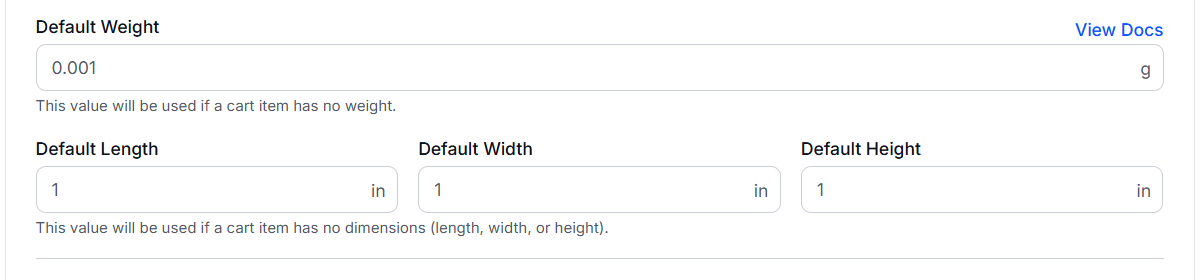
Default package dimensions and weight are used when one or more products in the cart do not have specific weight or size information. Setting these ensures shipping rates are calculated correctly, avoiding errors or missing rates at checkout.
Set a Default Weight
Enter a fallback weight that will be used if any cart item does not have a weight. Imagine a customer orders:
- 1 keychain (weight not specified)
- 2 T-shirts (each 200g)
If you set a Default Weight of 10g for items without weight, WowShipping will calculate:
- Keychain: 10g (default)
- T-shirts: 200g × 2 = 400g
Total package weight: 10g + 400g = 410g
Without this default, the keychain’s weight would be missing, causing the carrier to return an error or an inaccurate rate.
Set the Default Dimensions
Enter fallback length, width, and height that will be used if any cart item does not have dimensions. Imagine a cart contains:
- 1 mug (dimensions missing)
- 1 notebook (5 in × 8 in × 0.5 in)
If you set:
- Default Length: 6 in
- Default Width: 4 in
- Default Height: 3 in
WowShipping will calculate the combined package size as:
- Mug: 6 × 4 × 3 in (default)
- Notebook: 5 × 8 × 0.5 in
Combined dimensions are used for live shipping rate calculations, ensuring the carrier can estimate shipping correctly.
Why the Default Weight and Dimensions Are Necessary
- Carriers calculate shipping costs based on weight and size.
- Missing dimensions can lead to failed rate requests or incorrect shipping costs
- Setting defaults ensures every item has values for accurate live rates.
Packaging Strategy
In this step, you’ll decide how WowShipping calculates your shipping packages. Each strategy determines how items are grouped, packed, and rated during live shipping calculations. Choosing the right method helps ensure accurate rates and cost-effective delivery.
Single Package
All items in an order are combined into one package. The system adds up the total weight and calculates dimensions based on the items’ combined size. This option simplifies shipping calculations and usually gives the lowest rate for compact orders.
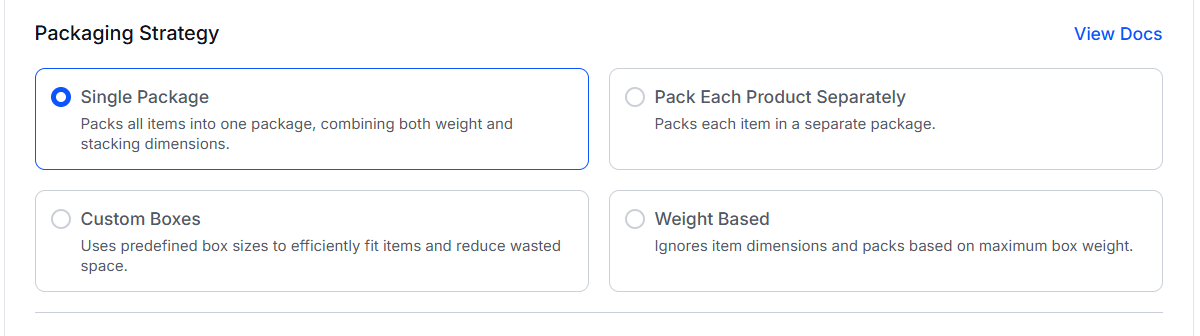
How it works: If a customer buys three T-shirts, each weighing 200g, WowShipping will treat it as one package weighing 600g.
Best for: Stores selling small, lightweight products that can easily fit together — for example, clothing, stationery, or small gadgets.
Pack Each Product Separately
Each product is packed and shipped in its own box. The system calculates shipping for each item and then adds them together for the total rate. Choose this option when products cannot be safely combined into one box.
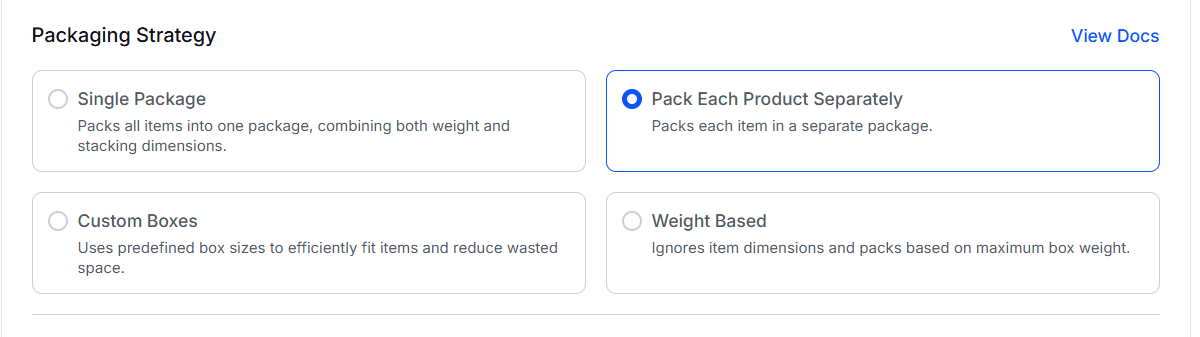
How it works: If a customer buys two ceramic mugs, each weighing 400g, WowShipping will calculate shipping for two separate 400g packages.
Best for: Fragile, irregular-shaped, or individually packed products — such as glassware, electronics, or premium gifts.
Custom Boxes
This method uses predefined box sizes that you create. The system automatically selects the best-fitting box (or combination of boxes) for each order to minimize space and shipping cost. Let’s say you sell skincare products and you’ve defined two box sizes:
- Small Box: 6x6x4 inches, empty weight 100g, max weight 1000g
- Large Box: 10x10x6 inches, empty weight 200g, max weight 2000g
If a customer orders a few lightweight items (under 1kg total), the system will use the small box. If the order exceeds that weight or size, it will automatically switch to the large box. The point is to define realistic dimensions and weights for the most accurate carrier rates.
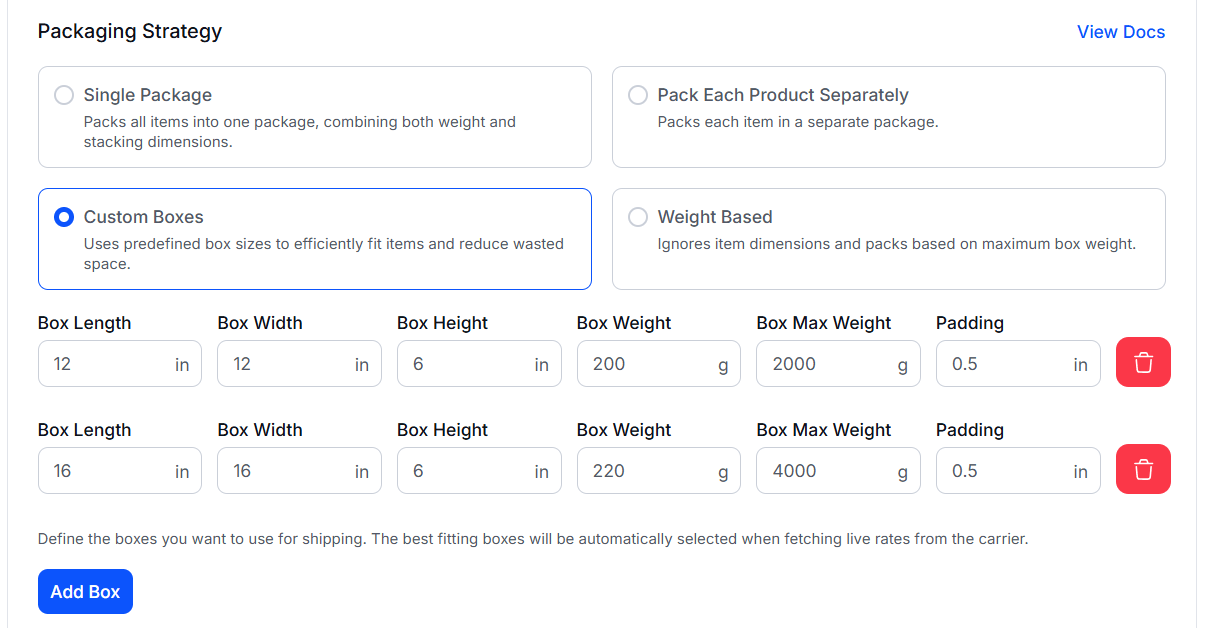
Custom Box Fields Explained:
- Box Length / Width / Height: The internal dimensions of the box in inches (used to calculate how items fit inside).
- Box Weight: The empty weight of the box in grams — added to the total shipping weight.
- Box Max Weight: The maximum total weight (items + box) the box can safely hold.
- Padding: Extra space (in inches) reserved for cushioning or packing material like bubble wrap.
You can add multiple box sizes by clicking Add Box. WowShipping will automatically select the most efficient box or combination based on your settings when fetching live rates.
Best for: Businesses that use specific packaging sizes — such as subscription boxes, cosmetic brands, or eCommerce stores that want to optimize shipping costs.
Weight Based
This strategy ignores item dimensions and calculates shipping purely by total package weight. You only need to set a maximum weight limit for a package. Keep your max weight close to your typical carrier’s parcel weight limit for accurate rate estimates.
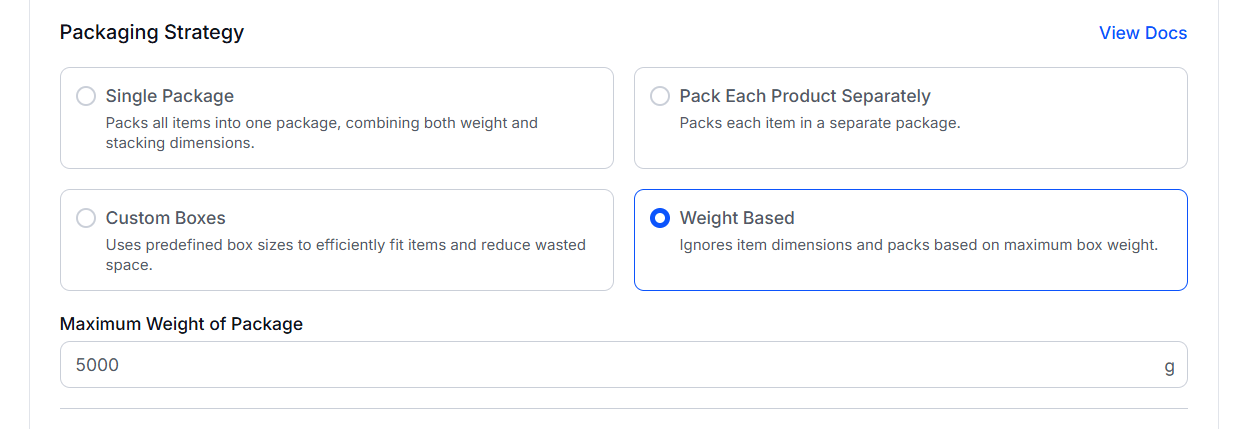
How it works: Suppose you set a maximum weight of 5000g (5kg).
- If an order weighs 2kg, it fits into one package.
- If an order weighs 7kg, WowShipping will split it into two packages (5kg + 2kg) and calculate shipping for both.
Why there’s only one field (Maximum Weight):
Because this method doesn’t consider size or box dimensions — it just divides the total order weight into as many packages as needed, based on your set weight limit.
Best for: Stores shipping uniform, dense items where weight is more important than size — for example, books, supplements, hardware, or bulk materials.
Markup (Optional)
Markup lets you adjust the carrier’s live shipping rates — either increase or decrease them.
Positive Number (add cost):
For example, if it costs you USD 2 to deliver the package from your store to the carrier’s office, you can add 2 as an amount. If the live rate is USD 10, your checkout will show USD 12.
Negative Number (discount cost):
Suppose you want to cover part of your customer’s shipping cost, or remove unwanted GST included in the live rate.
You can enter -2 as an amount to reduce a USD 10 live rate to USD 8.

You can add/subtract a fixed amount to the rate or a percentage of the rate by selecting the type. For example, adding $2 as a fixed markup will add $2 to every shipping rate returned by Australia Post.
Fallback Method (Optional)
Fallback Rate is used when no response or rate is received from the carrier during a live rate request. You can set it up using the following options:
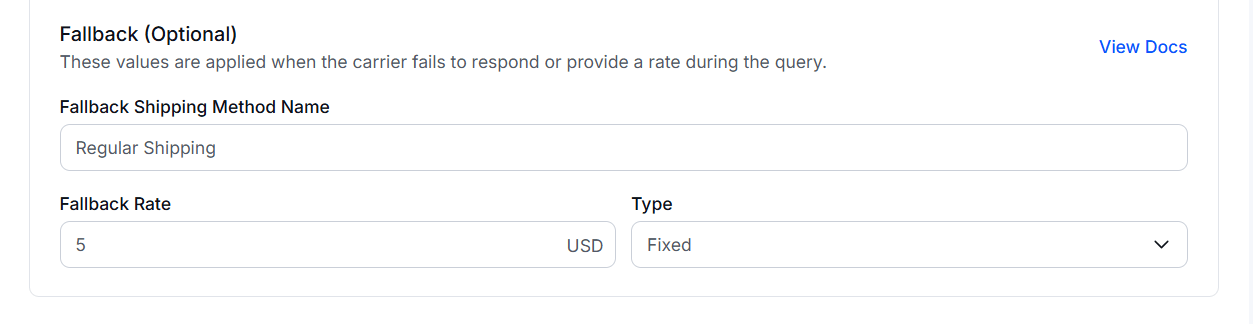
Fallback Shipping Method Name: Enter a name for the fallback rate. This name will appear to customers if the fallback is triggered.
Rate: Enter the fallback rate amount.
Type: Choose how the rate is applied:
- Fixed: A flat rate amount.
- Percentage: Calculated based on the cart total.