
The Advanced Formula field lets you calculate prices using custom logic.
You can combine multiple fields, apply conditions, and use math to generate a dynamic price. It works like a small calculation engine inside your product options.
For example, you may need to charge for a custom-built product based on the customers’ desired width and length.
Instead of adding fixed prices to options, you define a formula. The formula reads user inputs (width & length) and calculates the final amount automatically.
If your pricing rules are simple, you don’t need it. But if your pricing rules involve logic or calculations, this field gives you full control.
This field is available only to Premium version users. You have to buy a plan to get access to this field.
When Do You Need an Advanced Formula Field?
With WowAddons, you can set a fixed price for fields like checkboxes, dropdowns, radio buttons, etc.
You need the Advanced Formula field when the price depends on customer input. Or when one option affects the price of another.
Use it when:
✅ Price depends on dimensions like width × height
✅ Printing cost depends on the desired surface area
✅ A material choice changes the total calculation
✅ Quantity changes the unit price
✅ One addon’s price depends on another addon
You must define how the system should calculate the price. The Advanced Formula field lets you build that logic using customer inputs and product variables.
Understanding WowAddons’ Advanced Formula Field Interface
Here’s what you’ll see:
Title & Help Text: Use this to label the field and guide the customer on what/why they are actually seeing. This appears on the product page.
Formula Expression: This is where you write your formula. The formula reads input values and returns a number. That number is added to the product price finally.
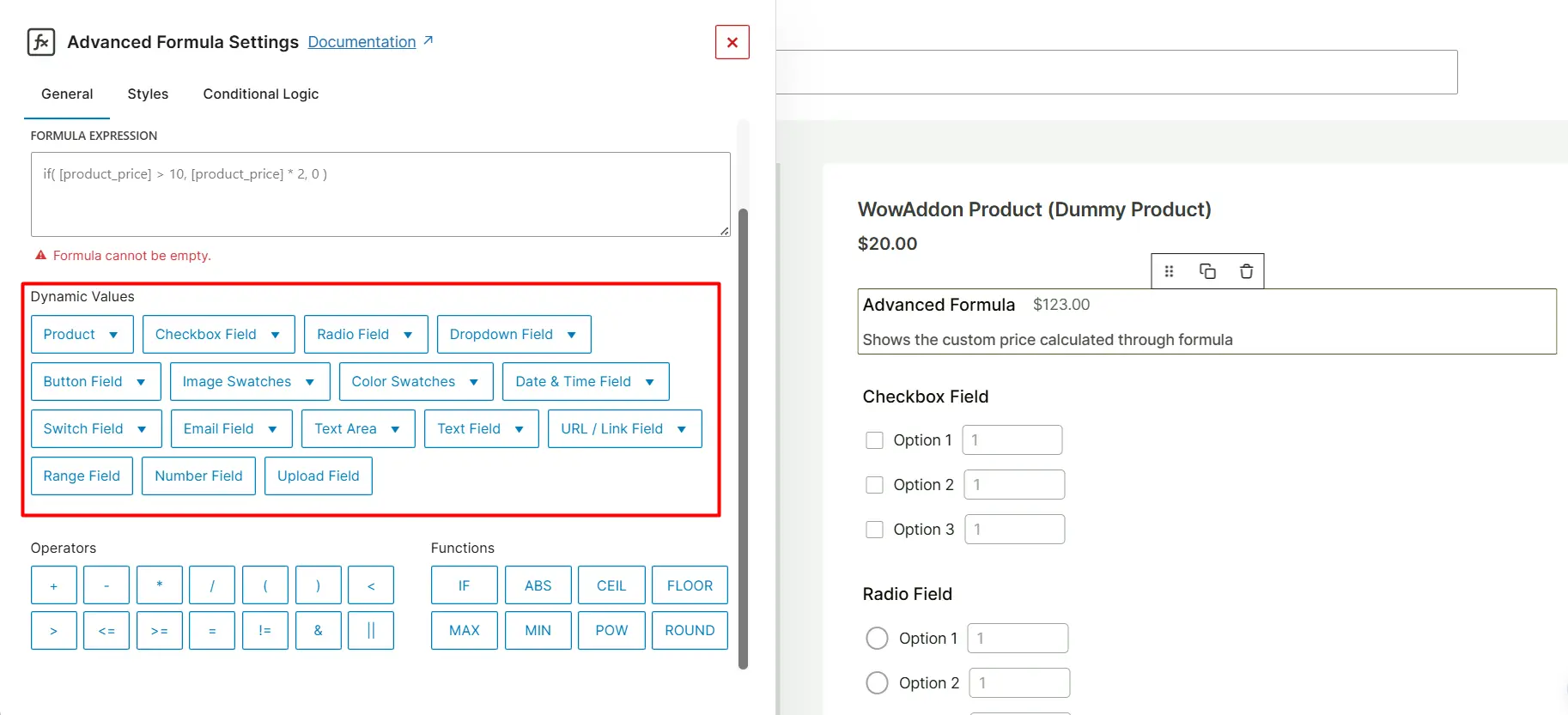
Dynamic Values Panel: This section lists all available values you can use in your formula. You can insert:
- Product price
- Quantity
- Number fields
- Text fields
- Checkbox values
- Radio or dropdown selections and more
Each field type returns a specific kind of value. You use these values inside your formula.
Operators: These allow you to perform calculations. Examples:
+add-subtract*multiply/divide- Comparison operators like
>, <, =
Functions: Functions help you apply logic. For example:
IF()for conditional pricingMAX()to enforce a minimum priceROUND()to clean decimals
You can build formulas using the dynamic values, operators, and functions.
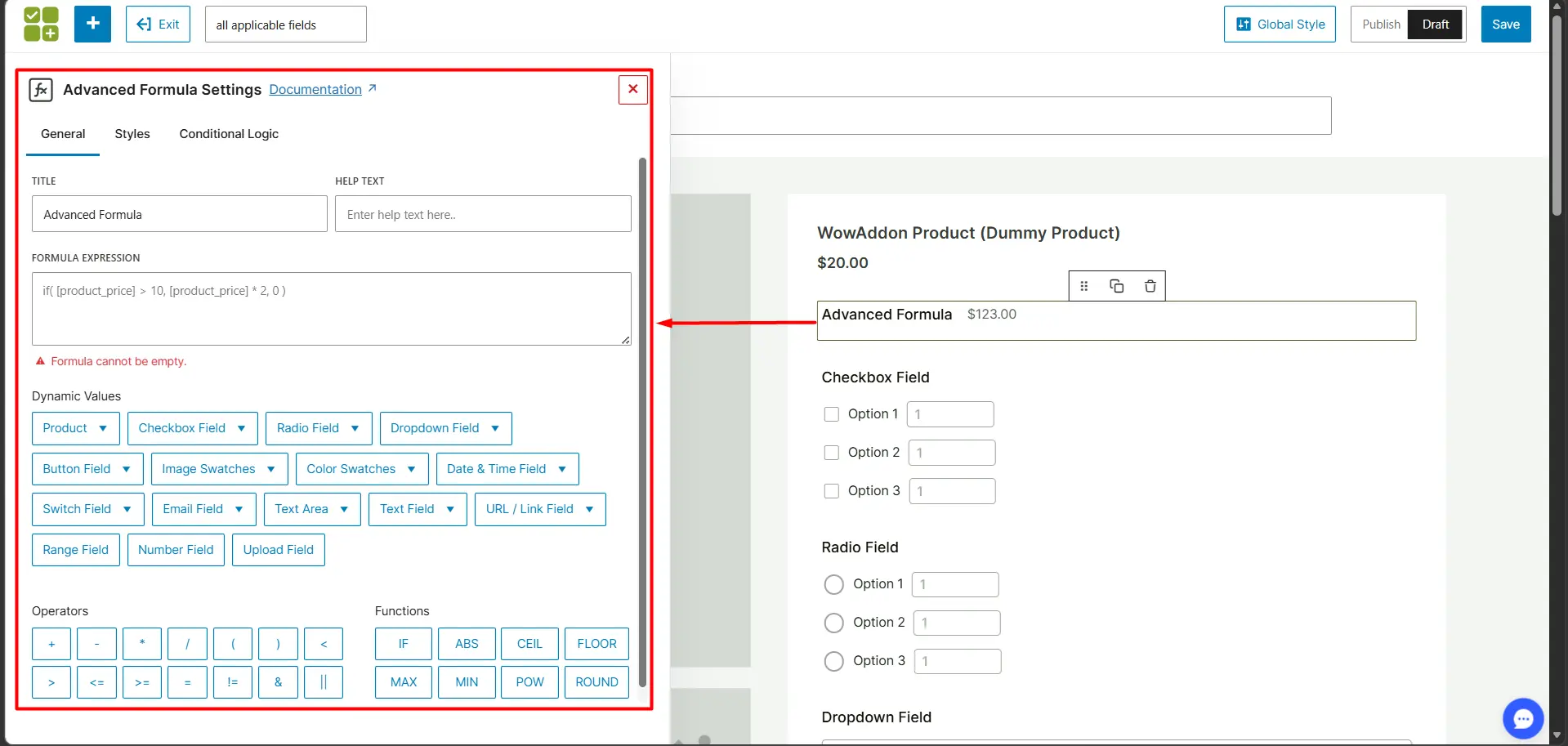
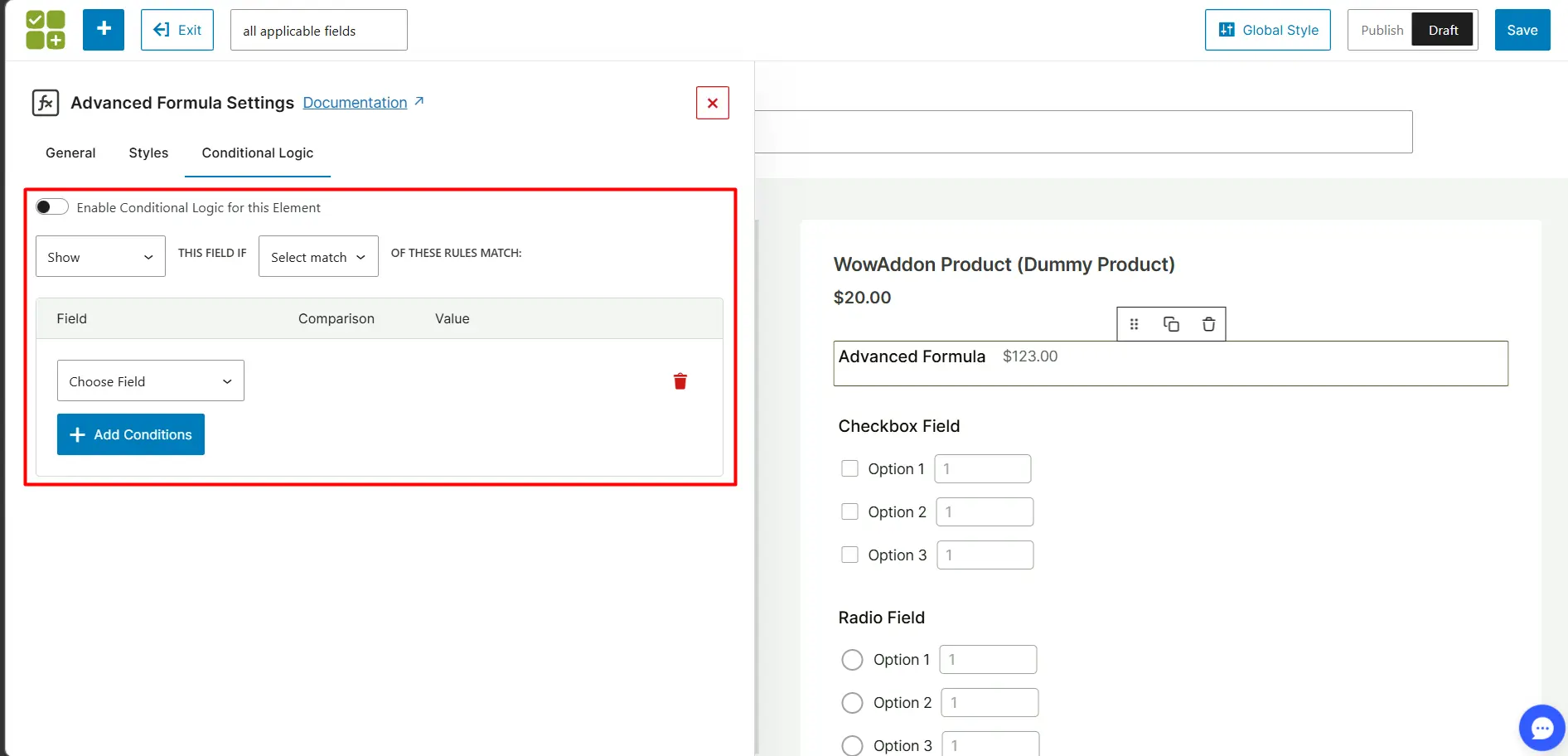
Conditional Logic Tab: This controls field visibility. It does not calculate the price. It only decides when to show or hide this field based on conditions.
You will learn how each part works in detail in the following sections.
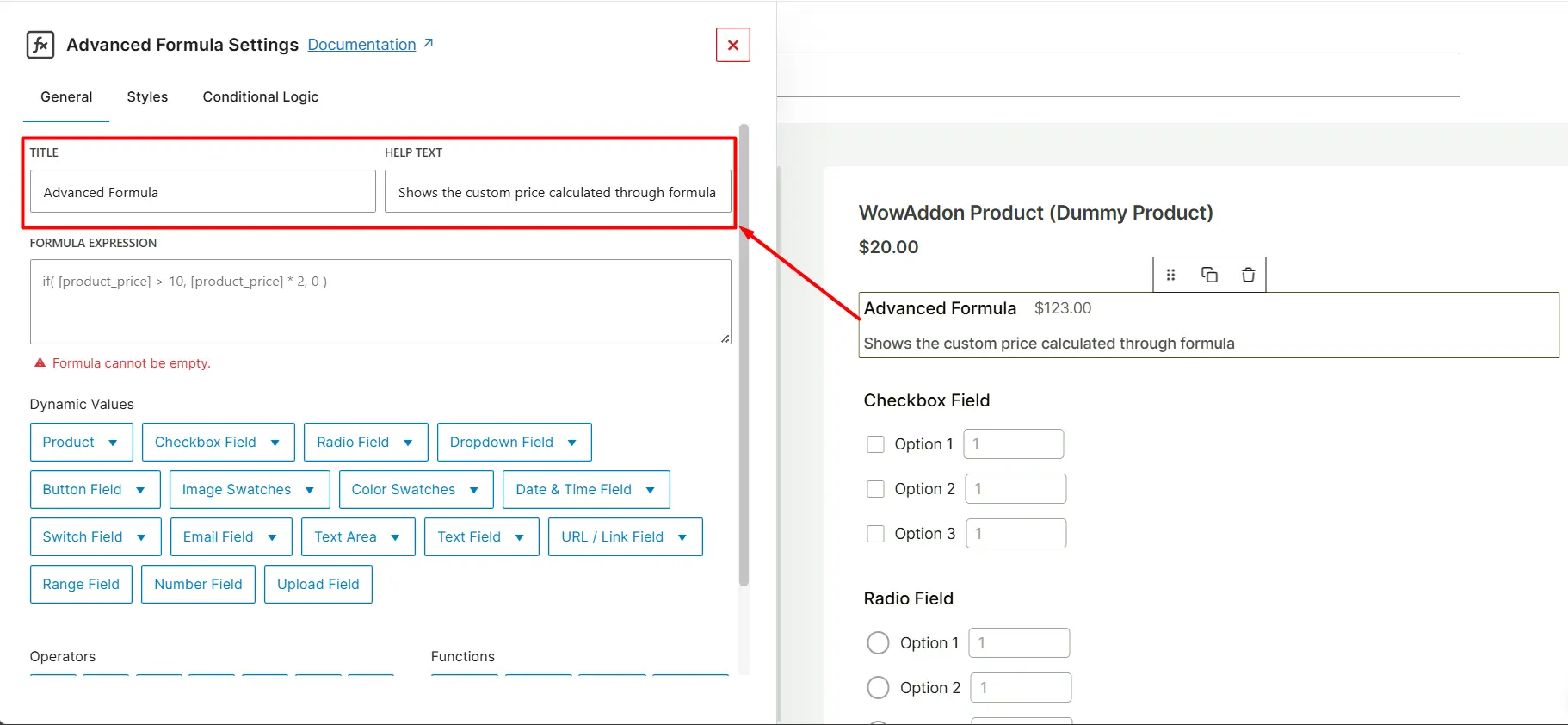
Title & Help Text
First, you have to insert a Title and a Help Text in the respective boxes.
These two will be shown in the product with the price. You can tell customers what they are seeing and what this pricing is about.
Formula Expression
In the Formula Expression box, you can build or write your formulas. To build the formula, you have to use the dynamic values, operators, and functions.
The given formula will return a numeric value. If it returns true/false without being used inside an IF() condition, it will not affect pricing.
Note: You have to write the formula arithmetically accurately. Otherwise, it won’t return any value on your product page.
There will be error text, if any, under the box. Fix the errors mentioned there to get a functioning logic.
Dynamic Values
This is the most vital section of WowAddons’ Advanced Formula field. This field integrates with 15 other WowAddons fields.
Each field provides a set of necessary values based on its functional nature. You can find the details about all the dynamic values in the following:
- Options: Fields that let you choose an option have the following values:
- Selected: Returns whether a specific option is selected. Use this when the price should change only if a certain option is checked.
Example use: Add a surcharge only if “Gift Wrap” is selected. - Formula Value: Returns the formula value assigned to a specific option. Use this when an option has a calculated value that should be included in a larger formula.
Example use: Multiply the selected material’s formula value by the total area. - Quantity: Returns the quantity selected for a specific option. Works only if the option has a quantity selector enabled. Use this when customers can select multiple units of the same add-on.
Example use: Charge per extra accessory selected.
- Selected: Returns whether a specific option is selected. Use this when the price should change only if a certain option is checked.
- If None Selected: Returns true when no options in the field are selected. Use this to apply fallback logic.
Example use: Apply a default charge if no print option is selected. - If Any Selected: Returns true when at least one option is selected. Use this when pricing should apply if the customer chooses any option in the group.
Example use: Add setup cost if any printing option is selected. - If All Selected: Returns true when all options in the field are selected. Use this when a full package is chosen.
Example use: Apply bundle discount if all services are selected. - Count Selected: Returns the total number of selected options. Use this when pricing depends on how many options the user selects.
Example use: Charge $5 per selected add-on. - Min Selected Formula Value: Returns the lowest formula value among selected options. Use this for rules like minimum tier pricing.
Example use: Determine the base rate from the lowest selected service. - Max Selected Formula Value: Returns the highest formula value among selected options. Use this when pricing should follow the highest selected tier.
Example use: Use the most expensive selected material rate. - Sum of Selected Value: Returns the total of formula values for all selected options. Use this to calculate combined add-on costs.
Example use: Add all selected service costs together. - Total Quantity: Returns the total quantity across all selected options. Use this when multiple selectable options each have quantities.
Example use: Charge per total accessory units selected. - Selected Formula Value: Returns the formula value of the selected option. Use this when a single-choice field controls a multiplier or rate.
Example use: Material type defines cost per unit. - Number of Days from Today: Returns the number of days between today and the selected date. Use this for time-based pricing.
Example use: Rush fee if the delivery date is within 3 days. - Year: Returns the selected year value. Use this when pricing depends on a future or specific year.
- Month (1–12): Returns the selected month as a number. Use this for seasonal pricing logic.
Example use: Apply a higher rate in peak months. - Day (1–31): Returns the selected day number. Use this when specific calendar days affect the price.
- Weekend (Monday:1, Sunday:7): Returns the numeric day of the week. Use this to apply weekend surcharges.
Example use: Extra charge for Saturday or Sunday bookings. - Character Count: Returns the number of characters entered in a text field. Use this for per-character pricing.
Example use: Engraving cost per character. - Word Count: Returns the number of words entered. Use this when pricing depends on word volume.
Example use: Charge per word for custom printing.
Not every field supports all dynamic values. Let’s see which field has which of these values.
- Product: This is the basic constant value you will get every time. This value depends on the basic information of the selected product. The product value consists of:
- Price: it will return as the product price.
- Selected Quantity: It will return as the number of products the user selected.
- Weight: it will return as the weight of the product.
- Width: it will return as the width of the product
- Length: it will return as the length of the product
- Height: it will return as the height of the product
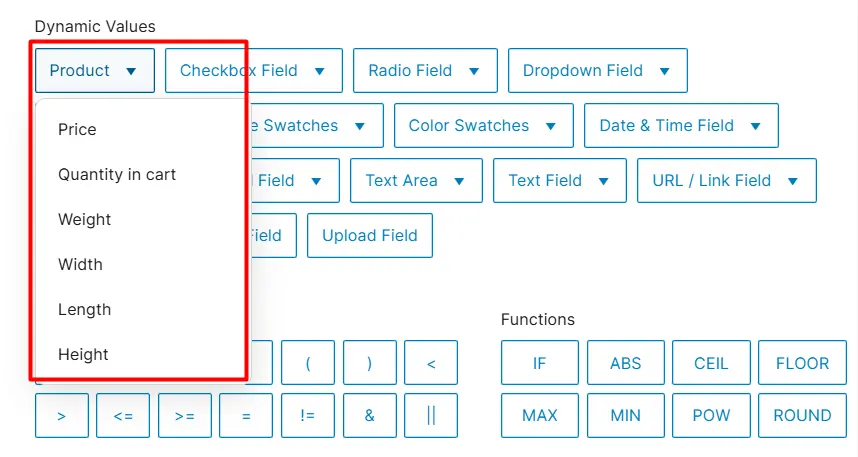
These values depend on the product data set in the WooCommerce product settings. These values will not return if the metrics can’t be found/set in the backend beforehand.
- Checkbox, Image & Color Swatches: These 3 fields have the following dynamic values:
- Options (for image and color swatches, it is labeled as image and color)
- If none are selected
- If any selected
- If all selected
- Count Selected
- Min selected formula value
- Max selected formula value
- Sum of selected value
- Total quantity
- Radio: Radio field has the following values:
- Options
- If any selected
- Selected formula value
- Quantity
- Dropdown: the dropdown field has the following values (no quantity-related values available):
- Options
- If any selected
- Selected formula value
- Button: The button field has the following (no quantity-related values available):
- Options
- If none are selected
- If any selected
- If all selected
- Count Selected
- Min selected formula value
- Max selected formula value
- Sum of selected value
- Date & Time: The Date & Time has the most unique values. They are:
- Number of days from today
- Year
- Month (1-12)
- Day (1-31)
- Weekend (Monday:1, Sunday: 7)
- Switch: Switch field has only 3 values. They are:
- Selected
- Formula Value
- Quantity
- Email, Text Area, Text, URL/Link: These fields are similar inputs, that’s why they have these 2 values:
- Character count
- Word count
- Range, Number, and Upload Field Value: These 3 fields have only one value for their respective fields.
- Range Field: returns the selected value from its slider
- Number Field: returns the number entered by the user
- Upload Field: returns the number of uploaded files
Operators
Below are the operators available in the Advanced Formula field and what each one does. You use these symbols to build calculations and conditions inside your formula.
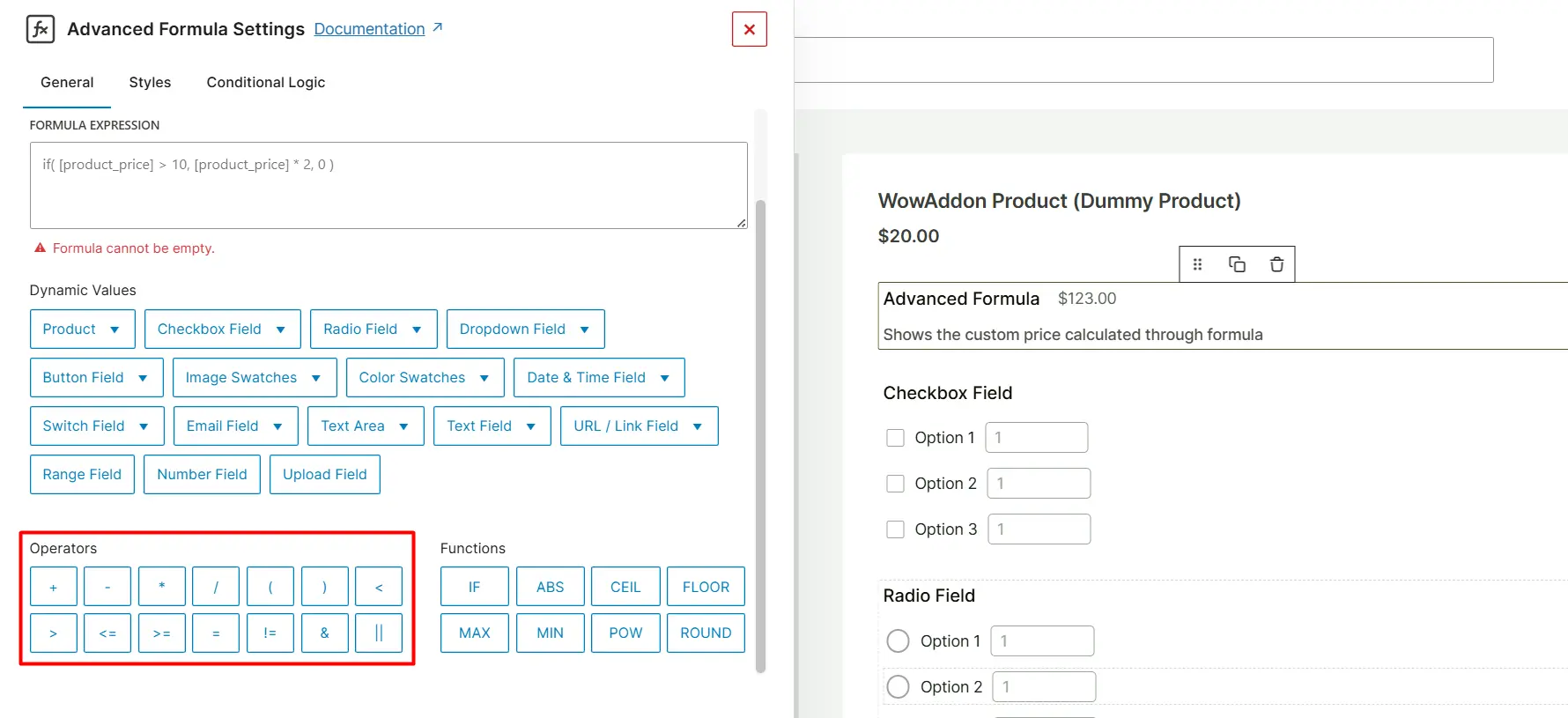
+ (Addition): Adds two values. Use this to combine costs.
- (Subtraction): Subtracts one value from another. Use this for discounts or deductions.
* (Multiplication): Multiplies values. Use this for per-unit or area-based pricing.
/ (Division): Divides one value by another. Use this to calculate averages or unit prices.
( ) (Parentheses): Group parts of a formula. Use parentheses to control calculation order.
= (Equal To): Checks if two values are equal. Use these inside conditions.
< (Less Than): Checks if a value is smaller than another. Use this for threshold rules.
> (Greater Than): Checks if a value is greater than another. Use this for tier-based pricing.
<= (Less Than or Equal To): Checks if a value is less than or equal to another. Use this when a boundary value should be included.
>= (Greater Than or Equal To): Checks if a value is greater than or equal to another. Use this for minimum order enforcement.
!= (Not Equal To): Checks if two values are not equal. Use this when a rule applies to all values except one.
& (Logical AND): Returns true only if all conditions are true. Use this when a rule should apply only if multiple conditions are met at the same time.
|| (Logical OR): Returns true if at least one condition is true. Use this when a rule should apply if any one of several conditions is met.
Functions
Below are the functions available in the Advanced Formula field and what each one does. Use these when simple math is not enough.
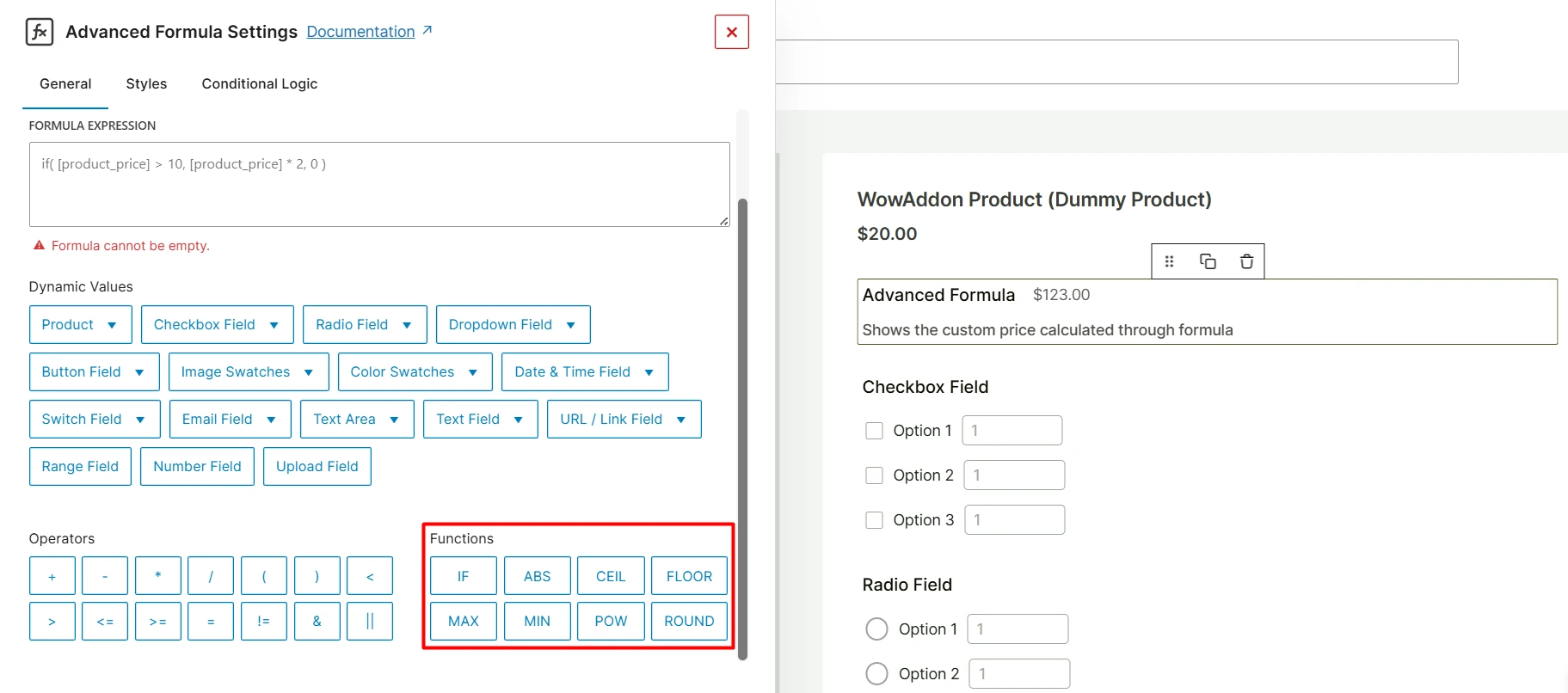
IF(condition, value_if_true, value_if_false): Applies conditional logic. Use this when the price depends on a rule(for discounts, surcharges, or tiered pricing)
Example use: If the quantity is 100 or more, the price becomes 10. Otherwise, it becomes 20.
You can also nest IF() functions to create multiple conditions. Example:
IF(Qty >= 100, 10, IF(Qty >= 50, 15, 20))
ABS(number): Returns the absolute value of a number. It removes the negative sign. Use this when you want to ensure a value is always positive.
Example use:
ABS(-15)will return 15.
CEIL(number): Rounds a number up to the nearest whole number. Use this when you charge per unit and must round up partial values.
Example use:
CEIL(4.2)will return 5.
FLOOR(number): Rounds a number down to the nearest whole number. Use this when partial values should not increase pricing.
Example use:
FLOOR(4.8)will return 4.
MAX(value1, value2, …): Returns the larger of two values. Use this to enforce a minimum charge.
Example use:
MAX(10, 12, 3)will ensure the final price will be the highest one. Here it will return as 12.
MIN(value1, value2, …): Returns the smallest of the given values. Use this to cap a price.
Example use:
MIN(10, 12, 3)will ensure the price will be the lowest one. Here, it will return as 3.
POW(base, exponent): Raises a number to a power. Use this for advanced area or volume calculations.
Example use:
POW(2, 3)will calculate 23=8.
ROUND(number, decimals): Rounds a number to a specific number of decimal places. Use this to clean the final pricing before display.
Example use:
ROUND(12.567, 2)will return 12.57.
These functions help you control how numbers behave in your pricing logic. Combine them with operators and dynamic values to build precise and flexible calculations.
When to Use Each Function
Use the table below to quickly decide which function fits your pricing rule.
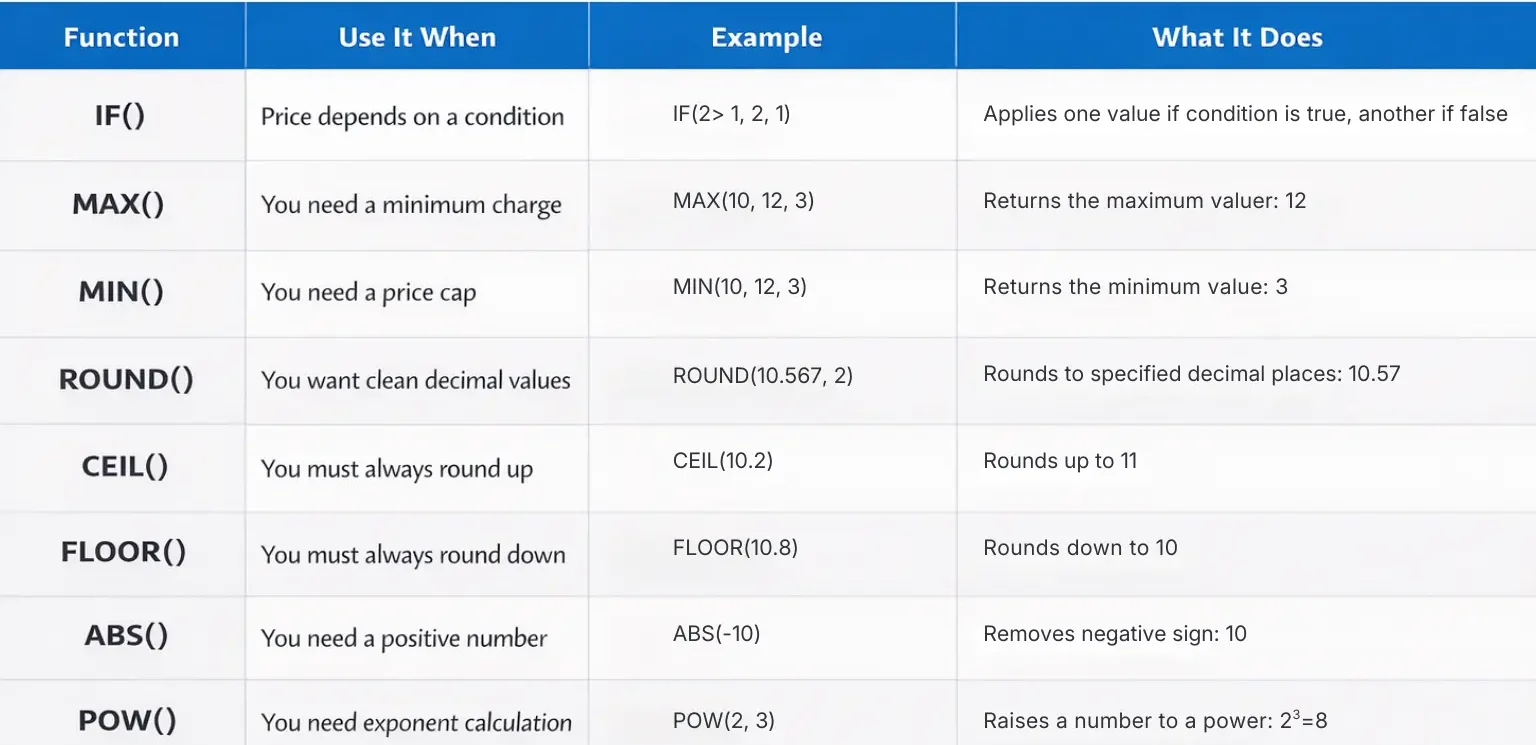
Use:
IF()for rules and conditionsMAX()andMIN()for boundariesROUND(), CEIL(), FLOOR()for number controlABS()for safety in calculationsPOW()for advanced mathematical formulas
Choose the function based on what you want the number to do, not just what you want to calculate.
Conditional Logic
Advanced Formula’s conditional logic works like any other field’s. You can show/hide the field based on the input of any other field used in the product.
However, due to the nature of the advanced formula, you might confuse it with the IF function. Below are the clear distinctions between the IF function and Conditional Logic:
| Aspect | IF() Function | Conditional Logic |
|---|---|---|
| What It is | A formula function used inside the Advanced Formula field | A rule-based system configured through UI settings |
| How It Works | Evaluates a condition and returns one value if true, another if false | Applies actions automatically when predefined conditions are met |
| Where It is Used | Inside a custom formula | Inside addon settings (show/hide fields, etc.) |
| Flexibility | High | Moderate |
| Complexity Level | More technical | Beginner-friendly |
| Example | IF(2 > 1, 2, 1) | Show advanced formula field If option 1 in the checkbox is selected |
| Best for | Dynamic pricing calculations | Controlling field visibility or simple rule-based behavior |
| Requires Formula Knowledge? | Yes | No |
In Simple Terms
- Use Conditional Logic when you want to control behavior. (Show, hide, enable, disable)
- Use IF() when you want to control the price mathematically. (Calculate different results based on a condition.)
You can’t control the visibility of the field by using the function in an advanced formula field.
If you need further assistance, kindly contact our support team. They will be able to assist you with your particular queries.