
The USPS integration in WowShipping lets you show real-time USPS shipping rates directly on the checkout page.
⚠️ Important: This page explains only the USPS authentication process and USPS-specific settings. 👉 For setup instructions on Default Weight & Dimensions, Packaging Strategy, Markup Rate, and Fallback Method, please continue to the Carrier Live Rate guide.
Here’s how you can connect your USPS carrier with WowShipping.
Step 1: Choose USPS as your shipping carrier
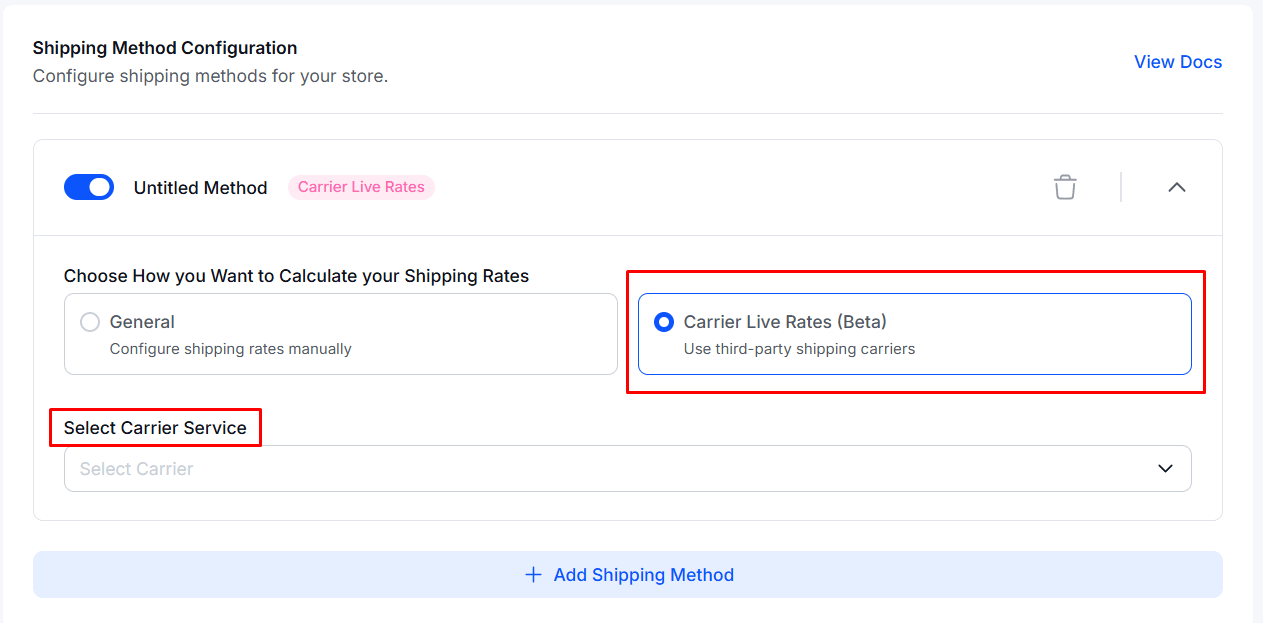
Follow these steps to access the carrier selection:
- Add a shipping method, or open an existing one you want to configure.
- Select Carrier Live Rates as the shipping rate calculation method.
- Choose USPS from the list of available carrier services.
Once selected, the USPS account configuration options will appear below.
Step 2: Connect Your USPS Account
After selecting USPS as your carrier, authenticate your account by following these steps:
- Scroll down to the USPS Account section.
- Click the Connect Account button.
- A modal window titled Manage USPS Account will appear.
- Enter your Client ID and Client Secret in the provided fields
(you can obtain these from your USPS account). - Click Save to establish the connection.
Note: You’ll need to contact USPS to obtain your Client ID and Client Secret. These credentials are typically available in your USPS account dashboard under Settings → API Credentials.
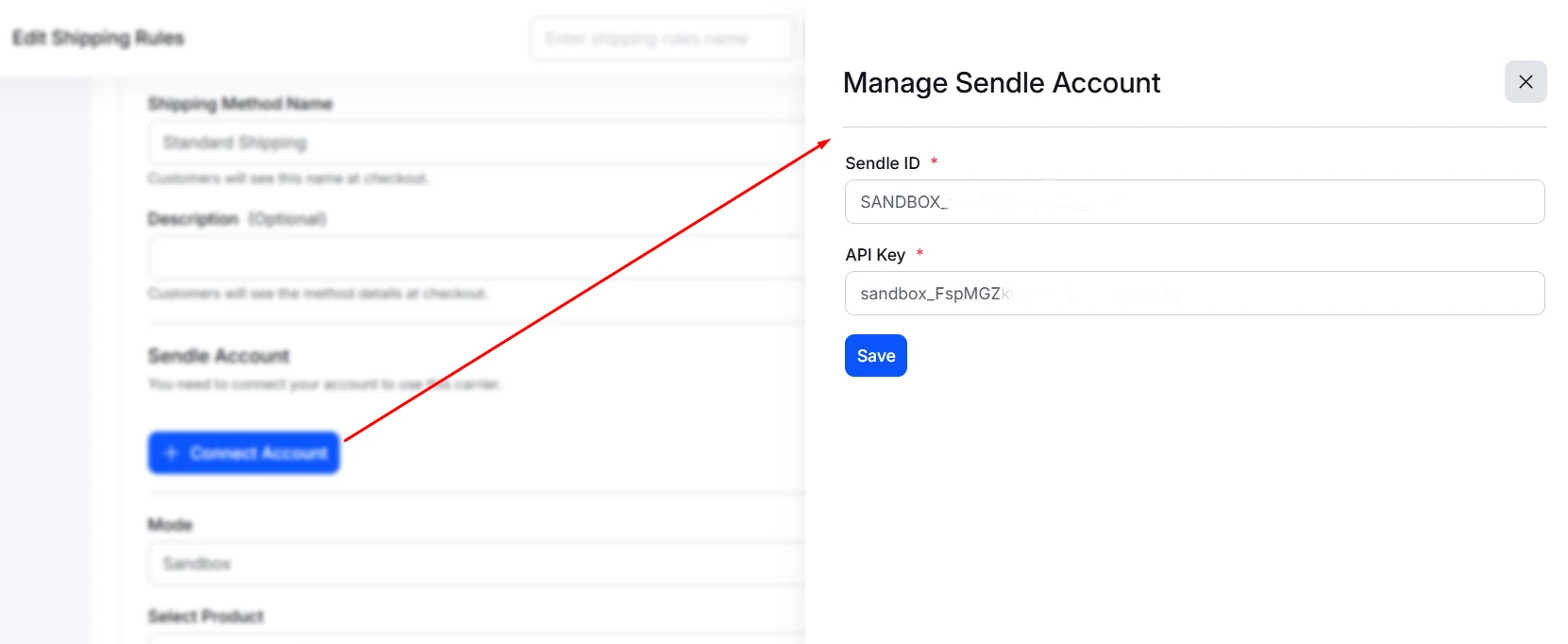
Once the connection is successful, you’ll see the confirmation message: “Account connected successfully!”
Step 3: Configure USPS Shipping Options
After connecting your USPS account, set up the shipping method details:
1. Select Mode
Choose whether you want to use Sandbox or Live.
Use Sandbox while you are testing and setting things up. When you are ready to show real USPS rates at checkout, switch to Live.
2. Select Service
Click the dropdown and pick the USPS shipping service you want to offer, like Ground Advantage or First Class Mail. This tells WowShipping which USPS service to use when calculating shipping costs.
3. Choose Price Type
Choose the one that matches how you want to charge for shipping.
- Commercial means business pricing (usually cheaper),
- while Retail means standard walk-in pricing.
4. Delivery Time Settings
If you want the system to show delivery time automatically, turn on Fetch Delivery Time from API.
If you don’t, you can leave it off and type in an Expected Delivery Time range (for example, 1–2 days) so customers can see an estimated delivery window.
5. Select Extra Services (Optional)
You can also add extra USPS services if you want. Click the Extra Services field and check things like Tracking Plus or Label Delivery Service. These add additional features customers can get with their shipment.
Here’s a quick table to make things easier to understand
| Setting | What to Do |
|---|---|
| Mode | Choose Sandbox or Live |
| Select Service | Pick a USPS service from the list |
| Price Type | Choose Commercial or Retail |
| Fetch Delivery Time from API | Toggle ON/OFF |
| Expected Delivery Time | Enter a custom time range if API is off |
| Extra Services | Select additional options like tracking |
How to Add Multiple USPS Services
WowShipping lets you set up more than one USPS shipping method so you can offer different services to your customers. To do this:
- Create a new shipping method
- Choose Carrier Live Rates → USPS again.
- Your USPS account is already connected, so you won’t need to enter the authentication details again.
- Pick a different USPS service from the dropdown list.
- Set up the unique options for this service just like you did before.
Using this approach, you can offer customers a choice of USPS shipping options, and you stay in full control of pricing and service settings.
Next Steps
Now that you’ve connected USPS, go to the Carrier Live Rate to set up the rest of your shipping method. Here you can configure:
- Default Weight and Dimensions
- Packaging strategy
- Rate markup/adjustments, and
- Fallback method
Need Help?
If you need more support with the USPS integration, reach out to the support team.